Photoshop Setup
One file. Two minutes. Every screen in the room looks the same,
and every screenshot on this site matches yours.
What a finished setup looks like
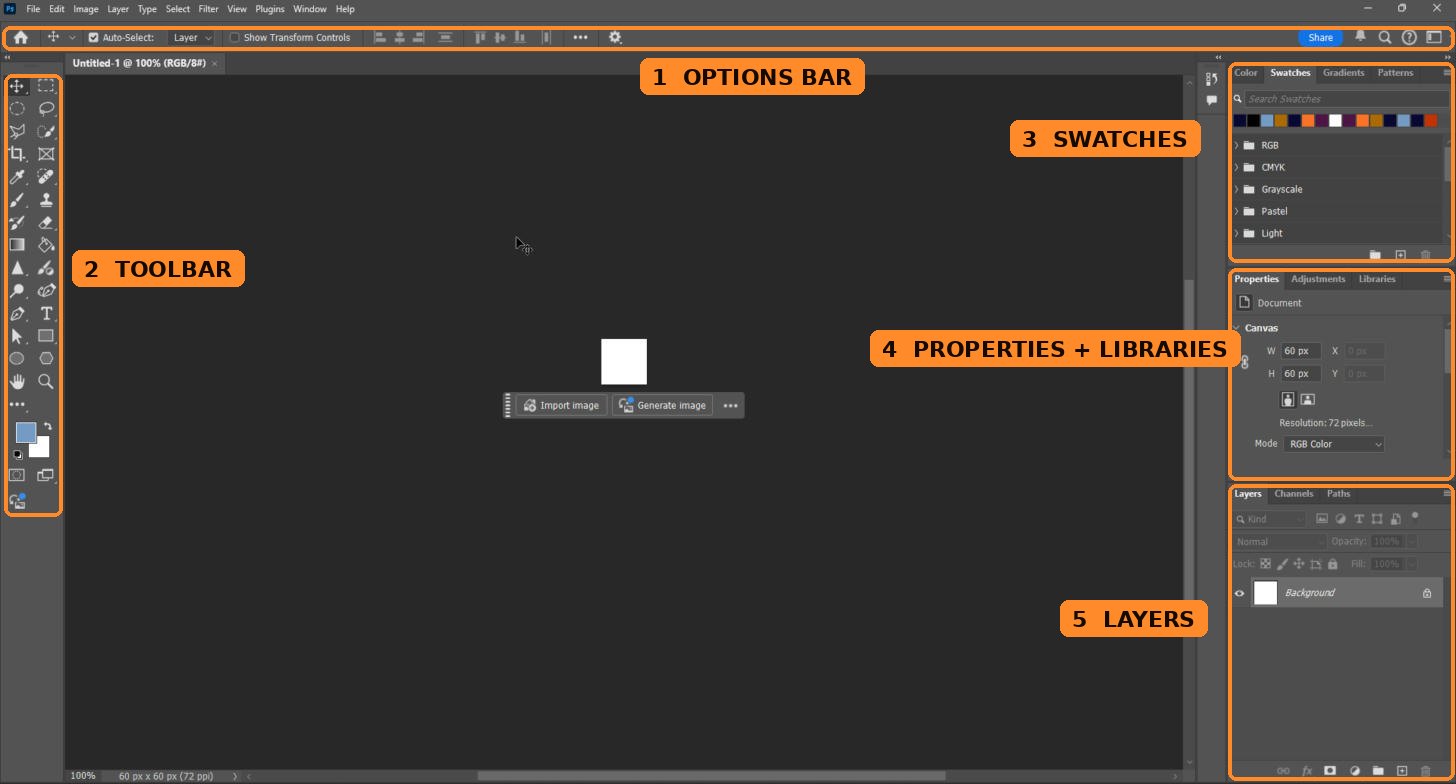
Hold your screen up next to this picture. When you're done, yours has all five:
- Options bar across the top, right under the menus. This is where Fill, Stroke, and Star Ratio live for whatever tool you're holding.
- Toolbar in two columns on the left. Polygon, Ellipse, Paint Bucket, Elliptical Marquee, Polygonal Lasso, and Curvature Pen each get their own button. No right-click hunting. Your foreground and background color squares sit at the bottom, fully visible.
- Swatches docked top right.
- Properties and Libraries docked in the middle.
- Layers docked at the bottom.
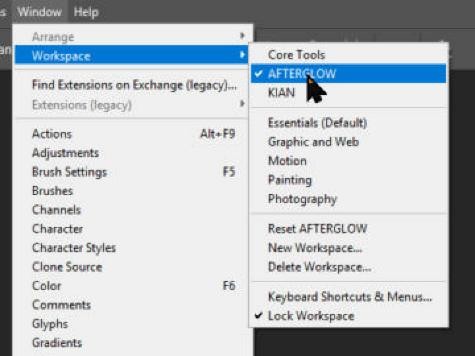
Last check: open . There's a check mark next to AFTERGLOW and another next to Lock Workspace. Try dragging a panel tab. It won't budge.
That's the lock doing its job.
Why we do this
Out of the box, Photoshop lets every panel float, collapse, and wander off. Give it a few weeks and no two screens in the room look alike. Then a step says "click Fill in the options bar" and half the room is staring at a screen with no options bar.
Ask Night 9 how that went.
AFTERGLOW is the room's layout: same panels, same spots, locked so they stay there. The exam doesn't care where your panels live. We do, because it means every instruction on this site lands the first time, on every screen.
Install it
Download the installer
Download install-afterglow.jsxIt lands in your Downloads folder. It's a tiny Photoshop script. It finds your Photoshop's settings folder by itself, whatever year your Photoshop is.
Run it in Photoshop
Open Photoshop. Go to
Pick install-afterglow.jsx from Downloads and click Open (or Load).
A box pops up: AFTERGLOW is installed. Click OK.
If Photoshop asks whether to run the script, say yes.
Quit Photoshop, open it again
. All the way closed, not minimized. Then open it back up.
Photoshop only looks for new workspaces when it starts.
Switch to it
Make any new file (CtrlCmd + N, then Create). On the Home screen some menus stay grayed out.
Then .
Lock it
Same menu, bottom item: . A check mark appears next to it.
The lock is a setting on your computer, not part of the file, so you flip it on yourself. Once.
Now hold your screen up to the picture at the top.
If something's off
- Panels got messy anyway.
- . Snaps everything back.
- AFTERGLOW isn't in the list.
- Photoshop didn't restart all the way. Quit it, check it's gone from the taskbar, open it again.
- A tool I need isn't on the toolbar.
- Click the • • • at the bottom of the toolbar. Slice, Note, Count, Color Sampler, Red Eye, and a few others live there. Nobody in this course needs them, so they don't get a button.
- I'm on a school computer and it's gone next time.
- Some machines wipe settings at log out. Redo steps 2 to 5. Thirty seconds once you've done it before.
- The script won't run, or says it didn't work.
- Do it by hand. Download AFTERGLOW.psw and quit Photoshop. Press Win + R, type %APPDATA%\Adobe, hit Enter.In Finder press Shift + Cmd + G, type ~/Library/Preferences, hit Return. Open the newest Adobe Photoshop 20XX folder, then its Settings folder, then WorkSpaces (no WorkSpaces folder? make one). Drag the file in. Open Photoshop, then step 4.
- I want to move a panel on purpose.
- Click again to unlock, move it, lock it back.